Download the official Icom USB driver
Download the driver from Icom’s support site for your radio model and Windows version. Start from the Icom USB driver support page.
Icom USB Driver Setup
The Icom USB driver is the foundation for ShackMaestro, ShackScope, and most other Icom CAT-control software.
Purpose
Install the Icom USB driver before relying on ShackMaestro, ShackScope, OmniRig, or other CAT-control software. After the driver is installed and the radio is connected, Windows should show one or more Icom-related COM ports.
Steps
Download the driver from Icom’s support site for your radio model and Windows version. Start from the Icom USB driver support page.
Run the installer and follow Icom’s instructions. Restart Windows if the installer or Windows requests it.
Use a reliable USB cable and connect the radio directly to the PC where practical. Turn the radio on after the driver is installed.
Look under Ports (COM & LPT) and identify the COM port assigned to the Icom radio.
Use the physical radio USB COM port and matching baud rate in ShackMaestro’s Radio Settings. Do not assign this same physical COM port directly to OmniRig, WSJT-X, Log4OM, SDR Console, or ShackScope.
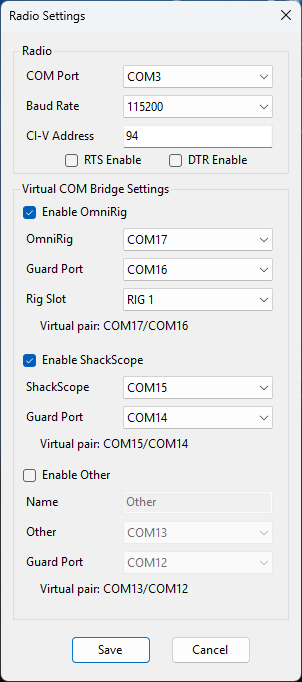
After Windows assigns the radio USB COM port, select that port in ShackMaestro’s Radio Settings. ShackMaestro should be the program that owns the physical radio connection.
Troubleshooting
Reinstall the Icom driver, try a different USB cable, and confirm the radio is powered on.
Disconnect and reconnect the radio while watching Device Manager to identify which COM port changes.
Only one program can usually open a physical serial port directly. Close other CAT programs before testing ShackMaestro.
Recommended workflow
Install the Icom USB driver, then verify the ShackMaestro-to-radio connection. After that, create the ShackScope virtual COM pair and verify ShackScope. Add optional OmniRig and other station software one step at a time later.